> For the complete documentation index, see [llms.txt](https://docs.wpjobopenings.com/llms.txt). Markdown versions of documentation pages are available by appending `.md` to page URLs; this page is available as [Markdown](https://docs.wpjobopenings.com/getting-started/job-openings-block.md).
# Job Openings Block
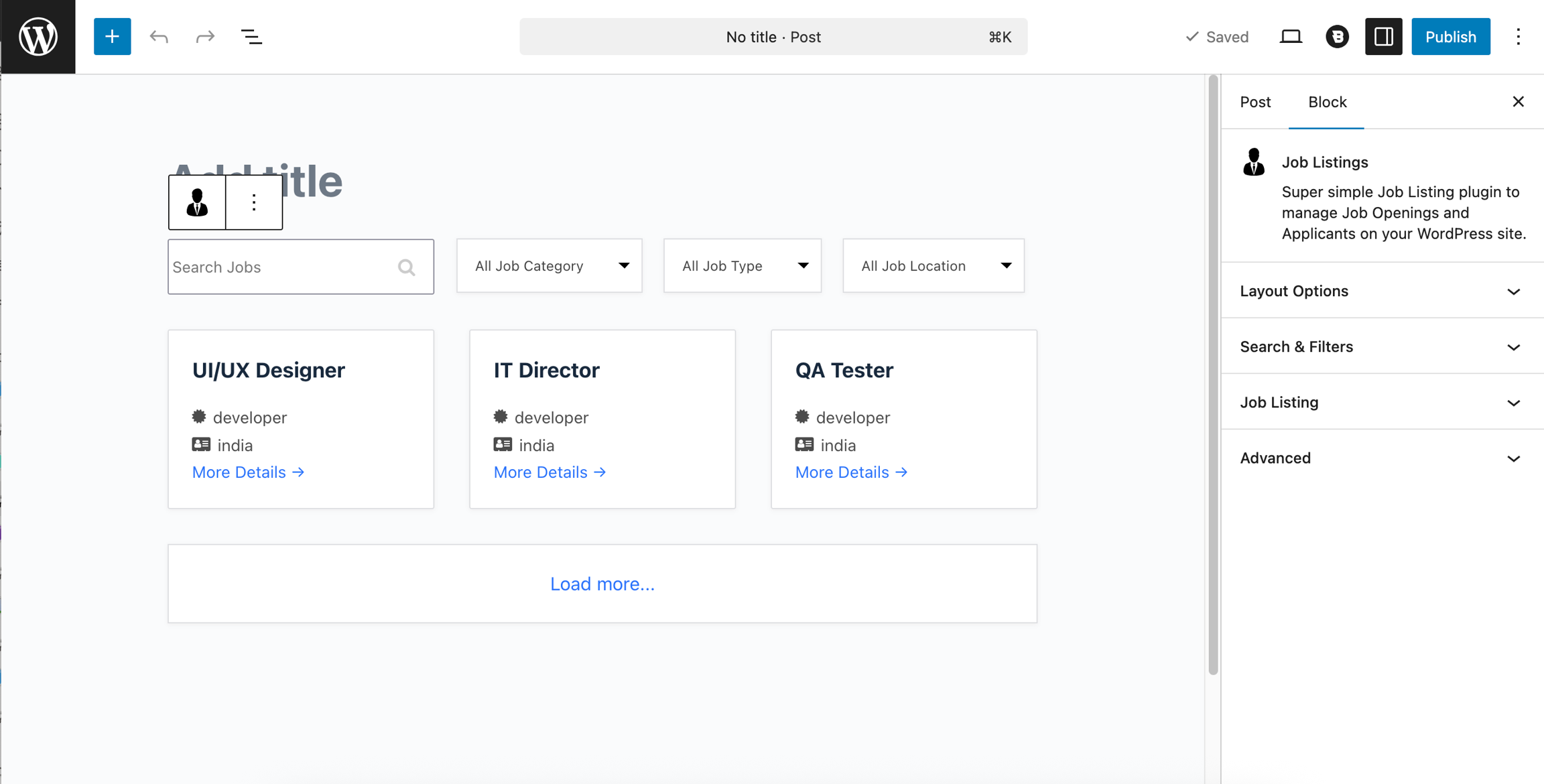
The **Job Listings** block is designed to manage and customise the front-end presentation of job posts using the block editor.
#### How to Add the Job Listings Block
* Go to **Pages → Add New** (or edit an existing page).
* Click the **“+” (Add Block)** button.
* Search for **“Job Listings”**.
* Select the **Job Listings Block**.
* The block will be added to your page.
#### Block Editor
The block editor page offers below configuration sections for controlling the front-end display of job listings.
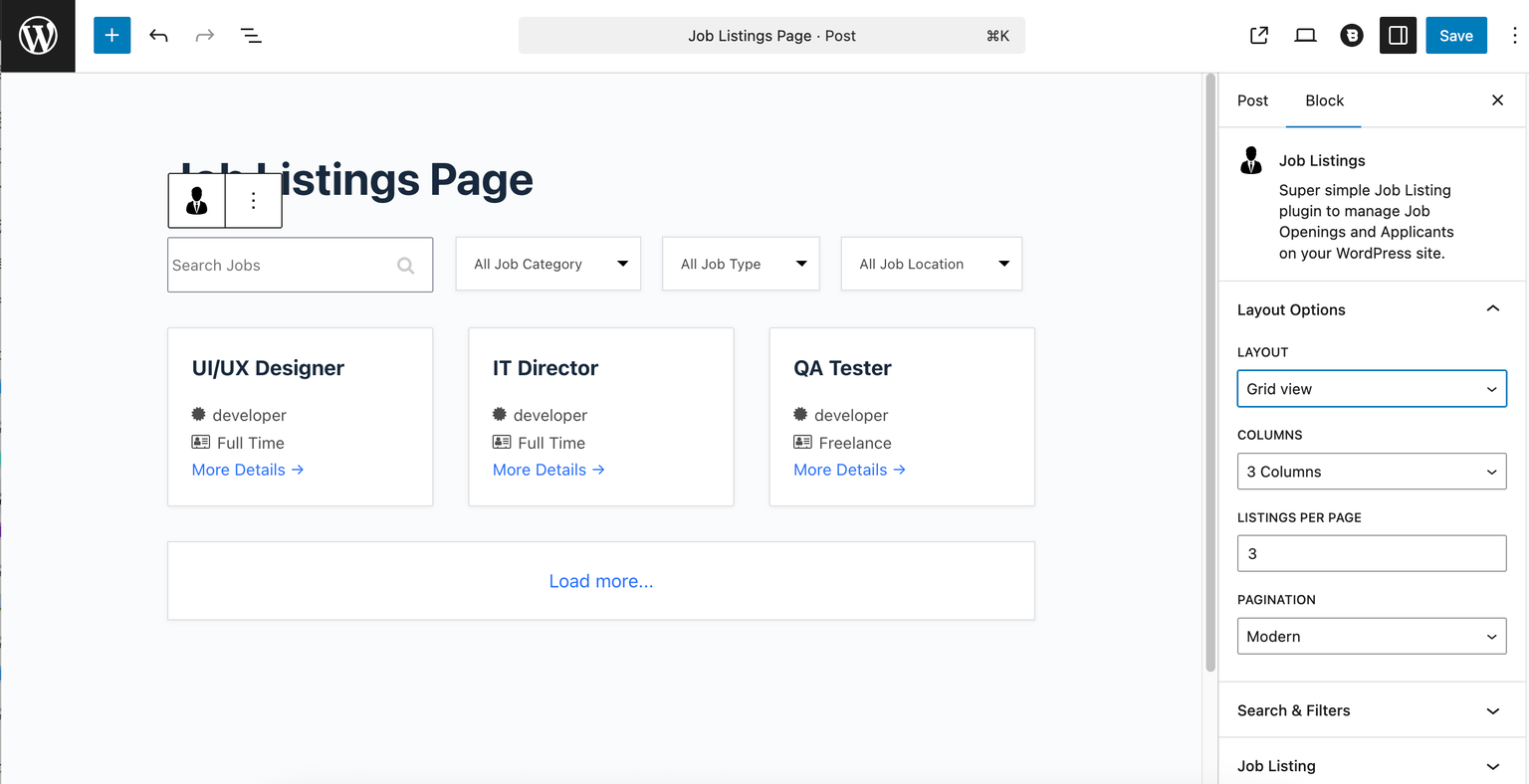
#### Layout Options
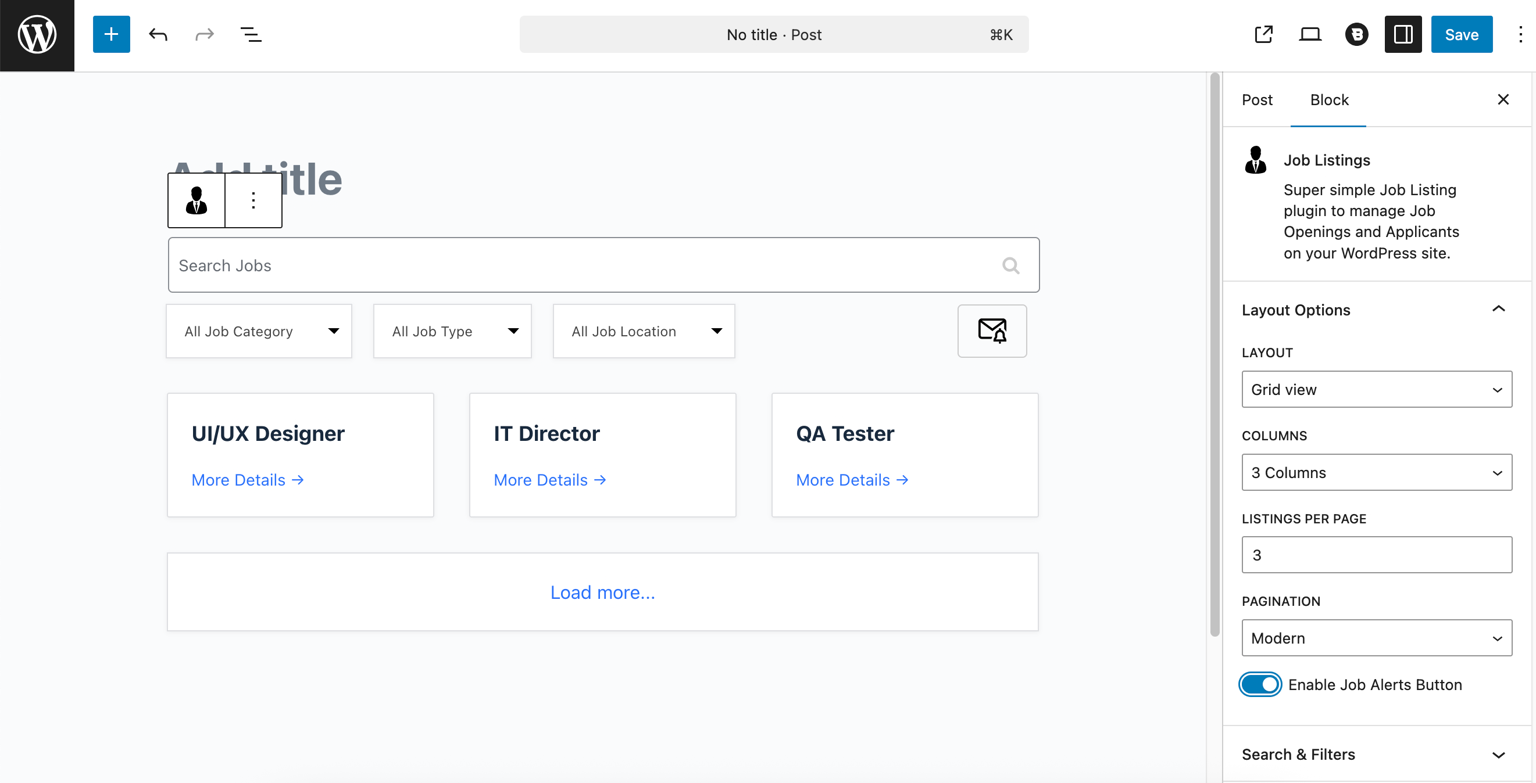
The first section is **Layout Options**, which allow users to choose between grid or list views, set the number of jobs displayed per page, and select the preferred pagination type.
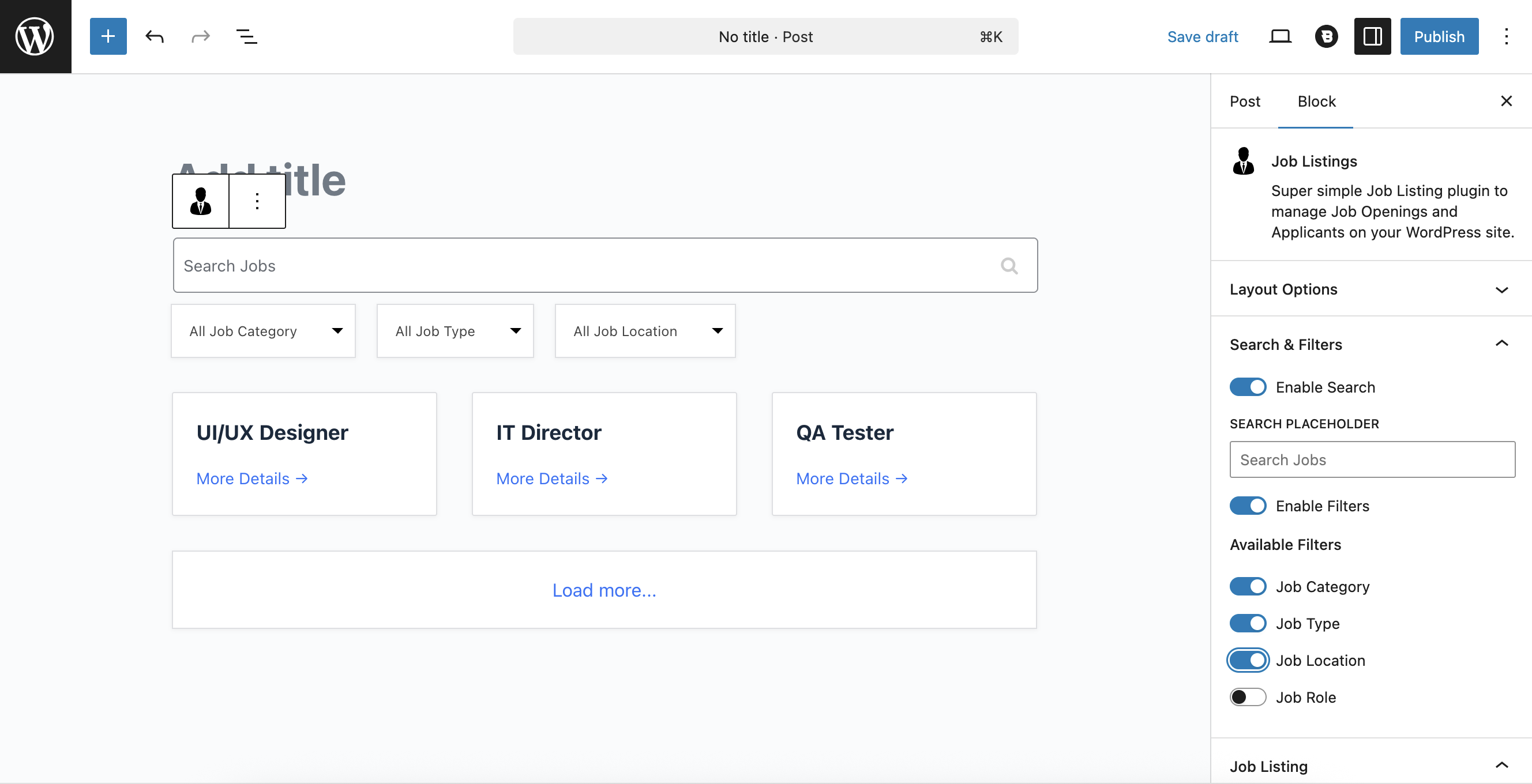
#### Search and Filters
The **Search and Filters** section provides options to control the visibility of the search feature and configure which filters are displayed on the front end. Users can also define the search text to be displayed in the search box.
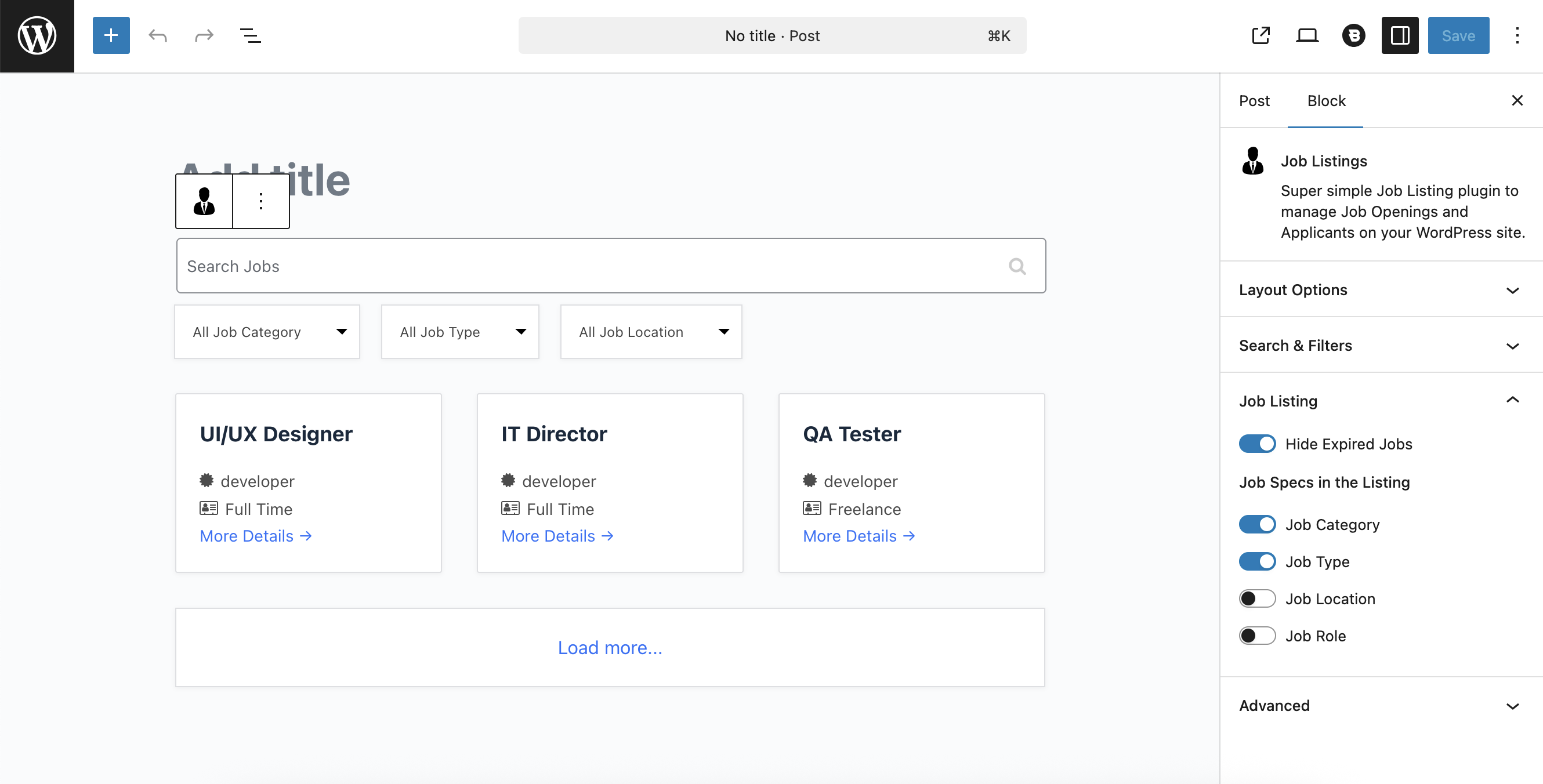
#### Job Listing
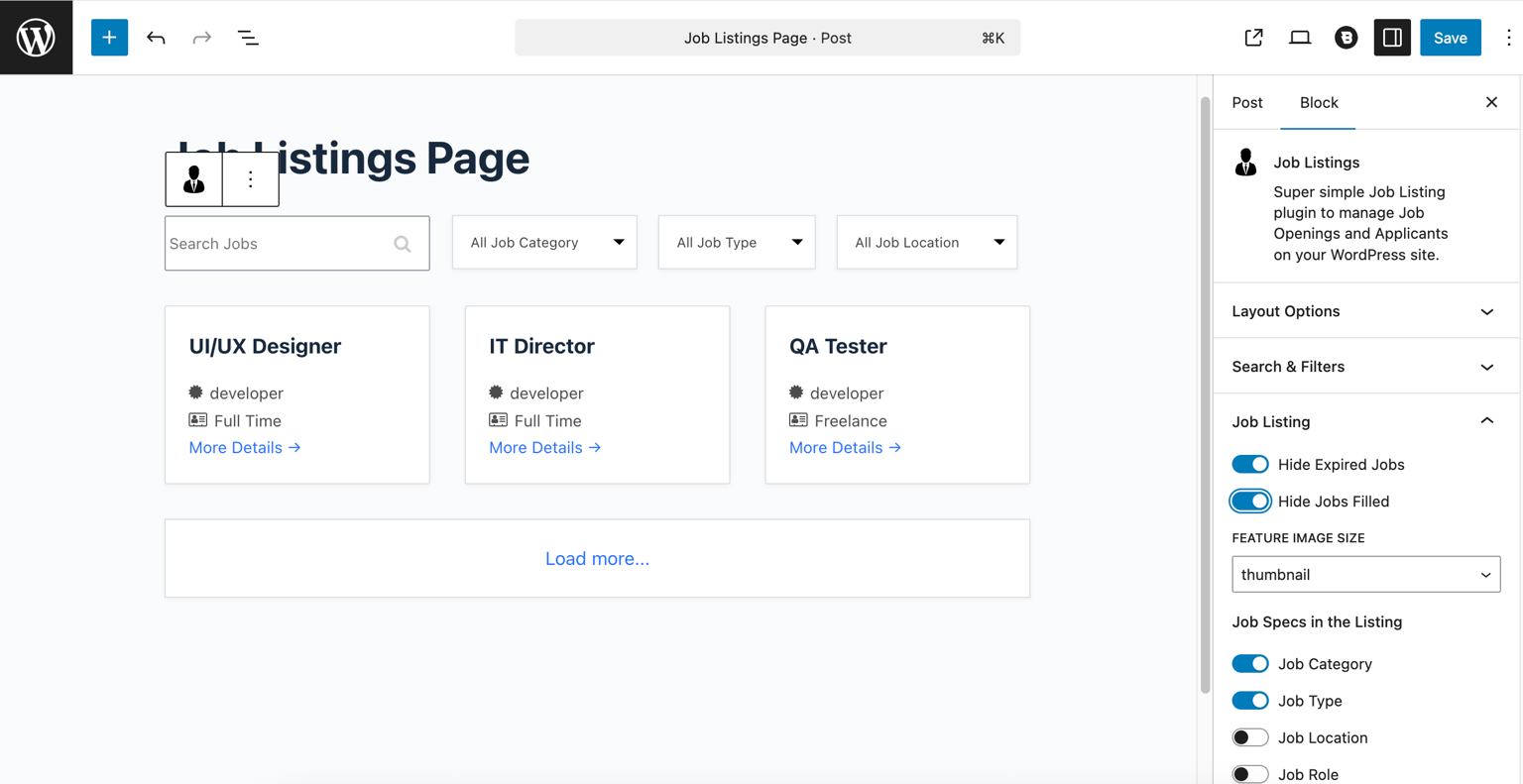
The **Job Listing** section allows users to hide expired job listings and in the Pro version, hide filled job listings. It also provides options to control which Job Specs are displayed for each job listing, enabling users to select the relevant details shown on the front end.
#### Pro Feature
The Pro feature provides an option to hide filled jobs, which can be customised through the block editor.
#### Job Alert Addon
An option is available to enable or disable the Alert button to show on the front end. This option is displayed in the block editor only when the Job Alert add-on is active.